Wednesday, November 26, 2008

Microsoft Dynamics CRM, Email correlation and smart matching

Microsoft Dynamics CRM Team Blog posted this


What is correlation and why is it required.

One of the important scenarios in email management within CRM is to have the incoming email get associated with the correct object it’s regarding to. Consider the scenario where you have created an email related to a case and sent to a customer. The customer responds to the email. The incoming email is tracked in CRM and should now get automatically associated with the same case it is being responded to.

We take a two step approach in finding out the correct regarding object for an incoming email. The first steps is to find the correlated outgoing email to which the customer has responded and the next step is to get the regarding object out of the co-related email and set it on the incoming email.

How was correlation done in CRM 3.0?

In CRM 3.0 every outgoing email from CRM was suffixed with a CRM token in its subject. The CRM token was in the format CRM:0001001 and was configurable via the system settings. When an incoming email was tacked in CRM the email would be checked for the presence of CRM token. If one was found, the system will then looks for the most recent email with the same email token to correlate the two. Once correlation is done, the regarding object of the correlated email if found was set on the incoming email.

How is correlation done in CRM 4.0?

Most of our customers did not want to have a fancy looking token suffixed to the subject line of every email sent out of CRM. So in CRM 4.0 we introduced a new concept of smart matching that is used to correlated emails. The usage of email token is optional and can be configured though system settings. The following blog article talks about it.

http://blogs.msdn.com/crm/archive/2008/01/29/what-s-new-in-microsoft-dynamics-crm-4-0-e-mail-integration.aspx

But there is subtle difference in how the email token is used in CRM 3.0 and CRM 4.0 version. In CRM 3.0 the presence of the token was the only way to identify and correlated emails. In CRM 4.0 the presence of the token only increases the accuracy of the correlation but does not determine it. Thus it’s possible that an incoming email having an email token does not get correlated to the outgoing email with the same email token. This is especially true if the customer has updated the subject of the email, but retained the token thinking it would be ok.

How does smart matching work:

Smart matching relies completely on the existence of similarity between emails. The subject and recipients (from, to, cc and bcc) list are the two important components that are considered with checking for similarity.

When an email is sent from CRM, there are two sets of hashes generated for it and stored in the database.

a. Subject hashes:

To generate subject hashes, the subject of the email, which may include the CRM token if its usage is enabled in system settings, is first checked for noise words like RE: FW: etc. The noise words are stripped off the subject and then tokenized. All the non empty tokens (words) are then hashed to generate subject hashes.

b. Recipient hashes:

To generate the recipient hashes the recipient (from, to, cc, bcc) list is analyzed for unique email addresses. For each unique email address an address hash is generated.

Next when an incoming email is tracked (arrived) in CRM, the same method is followed to create the subject and recipient hashes.

To find the correlation between the incoming email and the outgoing email the stored subject and recipient hashes are searched for matching values. Two emails are correlated if they have the same count of subject hashes and at least two matching recipient hashes.

How can smart matching be configured?

One size never fits all and so the above described constrain for correlation, which is the default behavior of out of box CRM, can be configured to suite individual needs.

There are four registry keys that allow you to manipulate the smart matching behavior. These registry keys need to be added under the CRM server registry hive only. I.e. HKLM\Software\Microsoft\MSCRM

1. HashFilterKeywords

    a. Description: This is a regular expression that is used to cancel out the noise in the subject line. All matching instances of the regular expression present in the subject line are replaced with empty strings before generating the subject hashes.

    b. Default value: ^[\s]*([\w]+\s?:[\s]*)+

Basically it indicate that we internally (by default) will ignore any word at (multiples of it) at the start of the subject line that has a “:” at the end of it example:


Subject

Ignored words

1

Test

None

2

RE: Test

RE:

3

FW: RE: Test

FW: RE:

Note: By default we do not ignore starting phrases in the subject line like “Out of office:” as this does not have the first word with the “:” next to it. For ignoring this phrase you can update the regular expression in the registry as “^[\s]*([\w]+\s?:[\s]*)+|Out of office:”. Do not place the double quote that I have around the string in the example into the registry. The text in the registry should only be the regular expression you want to use for ignoring words from the subject line.

2) HashMaxCount

    a. Description: This is the max number of hashes that will be generated for any subject or recipient list. I.e. if the subject after noise cancellation contains more than 20 words only the first 20 words are considered.

    b. Default value: 20

3) HashDeltaSubjectCount

    a. Description: This is the maximum delta allowed between subject hash counts of the emails to be correlated.

    b. Default value: 0

4) HashMinAddressCount

    a. Description: This is the minimum hash count matches required on the recipients list for the emails to be correlated.

    b. Default value: 2

Limitations:

The email hashes are generated when the email are sent out. If you change the HashFilterKeywords or the HashMaxCount via registry key only the new outgoing and incoming emails will be affected. The existing email hashes are not recalculated. Also CRM does not provide any out of box functionality to re-calculate the hashes.

Also the smart matching currently does not have a time limit on how old the correlated email could be. In CRM 5.0 we would address this along other improvements to smart matching.

Shashi Ranjan

Leveraging bulk delete jobs to manage System Job log records

Microsoft Dynamics CRM Team Blog posted


New to Microsoft Dynamics CRM 4 is the concept of having a single windows service that will manage all asynchronous operations. Each time an asynchronous operation takes place a number of log entries are created in the tables that support asynchronous operations.

Some examples of asynchronous operations are:

  • Workflow tasks
  • Asynchronous plugins
  • MatchCode operations (used for duplicate detection)
  • Maintenance activities

The logged information is great for tracking system jobs and workflows but can contribute to a large CRM organization database. For instance, every 5 minutes CRM generates matchcodes for duplicate detection rules to keep duplicate detection current. A log record is created for each one of the entities, if you had 3 entities with duplicate detection rules there would be 864 matchcode log entries per day (1440 minutes / 5 minutes * 3).

So, now you’re asking, “what can I do to control this or clear these out?”. You can use the Bulk Delete feature ( http://msdn.microsoft.com/en-us/library/cc155955.aspx) as documented in the CRM SDK. You can issue bulk deletes for out of the box and custom entities which includes the AsyncOperation entity otherwise known as the “System Job” entity. The bulk delete operation takes as input a QueryExpression and deletes the records returned by the query. Any QueryExpression you write could be used as part of a bulk delete. After creating the bulk delete job CRM will execute the deletes one after the other (the deletes are not set based) each delete will be evaluated against the business logic in the system just as if you were deleting records in the application. This means that any plugins you’ve registered will fire, cascading will occur, etc. It also means that the delete jobs may take some time to process before all the records are cleared out.

There are some prerequisites when trying to delete asyncoperation records using bulk delete.

  • User must be a system administrator – OR – hold the prvDelete privilege for asyncoperation entity as well as the prvBulkDelete privilege to call the BulkDelete API
  • Only asyncoperation records in Completed state can be deleted
  • If workflow type asyncoperations are deleted, you will lose workflow history for some records

Keeping those items in mind we should only include completed records and for this example we’ll also exclude any workflow operations. The sample can be altered to specifically delete match code jobs or include workflow operations, the sky is the limit. However, be careful with this sample be sure to test your bulk delete in an environment where you can monitor the deleted data, you should test your QueryExpression before issuing a BulkDelete to be sure that it is returning the correct data. A fully functioning solution / sample can be found at: http://code.msdn.microsoft.com/crmbulkdelete.

The following sample builds off the article written by Mahesh (link). In my sample I’ve included the following helper files provided in the CRM SDK:

  • businessentitypartialtypes.cs
  • columnscollection.cs
  • columnsethelper.cs
  • conditionexpressionhelper.cs
  • conditionexpressionhelpercollection.cs
  • enums.cs
  • filterexpressionhelper.cs
  • filterexpressionhelpercollection.cs
  • linkentityhelper.cs
  • linkentityhelpercollection.cs
  • orderexpressioncollection.cs
  • queryexpressionhelper.cs

Please note that when using these helpers you’ll want to make sure you correct the namespaces in the helper files, for instance if your project namespace is BulkDeleteMessageSample and web service reference is CrmSdk; the namespaces in the helpers should be changed to BulkDeleteMessageSample.CrmSdk.

   1: static void runBulkDelete()
   2: {
   3:  
   4:     CrmAuthenticationToken token = new CrmAuthenticationToken();
   5:     token.AuthenticationType = 0;
   6:     token.OrganizationName = "AdventureWorksCycle";
   7:     CrmService service = new CrmService();
   8:     service.Url = "http://crmserver/mscrmservices/2007/crmservice.asmx";
   9:     service.CrmAuthenticationTokenValue = token;
  10:     service.Credentials = System.Net.CredentialCache.DefaultCredentials;
  11:     //create a QueryExpression using the helper
  12:     QueryExpressionHelper expression = new QueryExpressionHelper("asyncoperation");
  13:     expression.Columns.AddColumn("asyncoperationid"); 
  14:     expression.Criteria.Conditions.AddCondition("statecode", ConditionOperator.Equal, (int)AsyncOperationState.Completed);
  15:     expression.Criteria.Conditions.AddCondition("completedon", ConditionOperator.OlderThanXMonths, 1);
  16:     expression.Criteria.Conditions.AddCondition("operationtype", ConditionOperator.NotEqual, (int)AsyncOperationType.Workflow);
  17:     Guid[] emptyRecipients = new Guid[0];
  18:     //Create a BulkDeleteRequest 
  19:     BulkDeleteRequest request = new BulkDeleteRequest();
  20:     request.JobName = "Bulk delete completed asyncoperations to free up space";
  21:     request.QuerySet = new QueryBase[] { expression.Query };
  22:     request.ToRecipients = emptyRecipients;
  23:     request.CCRecipients = emptyRecipients;
  24:     request.SendEmailNotification = false;
  25:     request.RecurrencePattern = string.Empty;
  26:     request.StartDateTime = CrmDateTime.Now;
  27:     BulkDeleteResponse response = (BulkDeleteResponse)service.Execute(request);
  28:     Console.WriteLine("Bulk delete job with id: {0} has been created", response.JobId);
  29: }

Additional notes regarding Bulk Delete jobs:

  • System Setup to prevent timeouts: After running a bulk delete job you may notice events in your event log from the source “MSCRMAsyncService” and an error message of: System.Data.SqlClient.SqlException: Timeout expired. When running your first bulk delete job increase the DWORD OleDBTimeout value to 300 (decimal) in the HKEY_LOCAL_MACHINE\Software\Microsoft\MSCRM key. NOTE: be sure to return this value to its original value after the deletion completes, if the key did not exist prior to this you can set it to 30 (decimal).
  • Recurrence, you could run this job weekly by setting the RecurrencePattern in accordance with the SDK (link) a weekly recurrence would be “FREQ=Weekly;INTERVAL=1”. You can also control the start time of the job by setting the StartDateTime. For a one time operation set the StartDateTime and leave the RecurrencePattern empty .
  • Email notification: You can setup an array of Guid’s, the Guid’s should contain SystemUserId’s of users you wish to have emailed after the job completes. To set the operation up to email when completing the job you should setup:
    • Set a value of the requests ToRecipients (must be a of type Guid[])
    • Set the value of SendEmailNotification to True (if set to false an email will not be sent)
    • Optionally, you may set a list of CCRecipients (also of type Guid[])
  • Database size: when the bulk delete process runs records will get marked for deletion; within 24 hours those records will get hard deleted from the database. You will not see a reduction in the database size as SQL will leave the empty space in the database. After the bulk deletes and deletion jobs run you can then shrink the database to recover the space on disk.
  • Finding your Bulk Delete Job: After running the above code sample you can find your bulk delete job in CRM under Settings | Data Management | Bulk Record Deletion. If you have set the job as a recurring job you can edit the recurrence settings through the UI in the Bulk Record Deletion screen (see image below).

clip_image001

Cheers,

Sean McNellis

Using Active Directory for authentication to CRM Online and MS Online Services

Posted: Friday, October 31, 2008 1:31 PM by bgalicia


Microsoft is now offering a Community Technology Preview of Microsoft Services Connector—a new Windows Server® component that seamlessly connects Active Directory users to a suite of Live services and Microsoft Online Services (including CRM Online). After the Microsoft Services Connector is installed, users are able to log into their Active Directory account and be given seamless access to Microsoft services as if those services were hosted on your organization's own network. Microsoft Services Connector leaves full administrative control of users and accounts in the hands of the customer. Try out Microsoft Services Connector today and let us know what you think!

image

http://channel9.msdn.com/pdc2008/BB29/

www.microsoft.com/servicesconnector

Displaying the Number of Notes on the Notes Tab

Posted by Jim Steger on November 7, 2008


The Microsoft CRM default form layout displays the Notes section on a separate tab. I often hear complaints from users that they don't know if any notes have been added without first clicking that tab. Many people don't realize that just as with any other section, you can move the Notes section to another tab, just as you would any other section. So one approach that many of our users have liked is to place the Notes section on the first tab as shown below.

This works, but I personally find it annoying as the the cursor will 'jump' down to the Notes section, sometimes scrolling past the info on top set of information, and you have less room to see multiple notes. Since I tend to keep the Notes section on its own separate tab, I wanted to find a way to let users know that data exists on that tab prior to clicking it. I created the following script to display the number of notes on the tab label as shown in the screen shot below.

The script I used is shown below and should be added to the entity's form onLoad function. Since this approach is entirely script based, it should also work on CRM Online. The tab where the Notes section exists must be called Notes for the script to work.

var totalNotes = getTotalNotes(crmForm.ObjectId);
setNoteTabName(totalNotes);

function setNoteTabName(count) {
    /* update note tab */
    if (crmForm.FormType != 1) {
        var cells = document.getElementsByTagName("A");

        for (var i = 0; i < cells.length; i++) {
            if (cells[i].innerText == "Notes") {
                if (count > 0) {
                        cells[i].innerText = "Notes (" + count + ")";
                        document.all.crmTabBar.style.width = "auto";
                }
                break;
            }
        }
    }
}

// Helper method to return the total notes associated with an object
function getTotalNotes(objectId) {
        // Define SOAP message
        var xml =
        [
        "<?xml version='1.0' encoding='utf-8'?>",
        "<soap:Envelope xmlns:soap=\"
http://schemas.xmlsoap.org/soap/envelope/\" ",
        "xmlns:xsi=\"
http://www.w3.org/2001/XMLSchema-instance\" ",
        "xmlns:xsd=\"
http://www.w3.org/2001/XMLSchema\">",
        GenerateAuthenticationHeader(),
        "<soap:Body>",
        "<RetrieveMultiple xmlns='
http://schemas.microsoft.com/crm/2007/WebServices'>",
        "<query xmlns:q1='
http://schemas.microsoft.com/crm/2006/Query' ",
        "xsi:type='q1:QueryExpression'>",
        "<q1:EntityName>annotation</q1:EntityName>",
        "<q1:ColumnSet xsi:type=\"q1:ColumnSet\"><q1:Attributes><q1:Attribute>createdon</q1:Attribute></q1:Attributes></q1:ColumnSet>",
        "<q1:Distinct>false</q1:Distinct><q1:Criteria><q1:FilterOperator>And</q1:FilterOperator>",
        "<q1:Conditions><q1:Condition><q1:AttributeName>objectid</q1:AttributeName><q1:Operator>Equal</q1:Operator>",
        "<q1:Values><q1:Value xsi:type=\"xsd:string\">",
        objectId,
        "</q1:Value></q1:Values></q1:Condition></q1:Conditions></q1:Criteria>",
        "</query>",
        "</RetrieveMultiple>",
        "</soap:Body>",
        "</soap:Envelope>"
        ].join("");
        var resultXml = executeSoapRequest("RetrieveMultiple", xml);
        return getMultipleNodeCount(resultXml, "q1:createdon");
}

// Helper method to execute a SOAP request
function executeSoapRequest(action, xml) {
    var actionUrl = "
http://schemas.microsoft.com/crm/2007/WebServices/";
    actionUrl += action;

    var xmlHttpRequest = new ActiveXObject("Msxml2.XMLHTTP");
    xmlHttpRequest.Open("POST", "/mscrmservices/2007/CrmService.asmx", false);
    xmlHttpRequest.setRequestHeader("SOAPAction", actionUrl);
    xmlHttpRequest.setRequestHeader("Content-Type", "text/xml; charset=utf-8");
    xmlHttpRequest.setRequestHeader("Content-Length", xml.length);
    xmlHttpRequest.send(xml);

    var resultXml = xmlHttpRequest.responseXML;
    return resultXml;
}

// Helper method to return total # of nodes from XML
function getMultipleNodeCount(tree, el) {
    var e = null;
    e = tree.getElementsByTagName(el);
    return e.length;
}

Naturally, all of the caveats apply...this code is presented as is and may not upgrade with future releases of Microsoft CRM.

Finally, since we are discussing Notes, a hot fix exists if you see that your Notes area just displays the spinning icon as referenced in this KB article:
http://support.microsoft.com/kb/951174

CRM, Performance Point and MOSS (CRM+PPS+MOSS)

Published Tuesday, October 21, 2008 10:00 PM by Jonas Deibe


Extending CRM with BI capacity has been on the radar for a while and with the new BI accelerators this will be an easy customization. The same applies to CRM and MOSS integrations. Since I have spent some time in this very interesting area I tough why not share some parts (screen captures). My goals was to build an application with Sales support (CRM) extend it with document management/collaboration (WSS/MOSS) and analyses, drilldown reporting plus dashboards (PPS)
The end application would be fully integrated and user navigation will be from the CRM client. Since its all installed on-premise authentication is single sign on (SSO). One very important goal is to let the end user not to know what underlying product she is using, it just doesn’t matter as long it works and supports the end-users business/processes.

The first step to do is to install the software. I use two servers and a client in my lab.
• Installation domain controller and Exchange (Server1)
• Installation SQL Server, AS for OLAP’s, Reporting Service (default port 80), CRM server (port 5555), MOSS Server (random port NOT default web 80), Performance Point Server (Monitoring), Visual studio (Server2)
• Installation of Client with Office package, Visual Studio (Client)

The installation process might take some time so don’t expect to install it all on an afternoon.
Details on how-to configure each product is not in scope of the blogs post (might be a later post)

The end result is a very powerfull application; below you see some screen shoots

Dashboard - Click to enlarge
CRM Webclient, Sharepoint site and PPS webparts rendering Dashboards from OLAP cube

Sharepoint Document Library
Sharepoint Document Library. Context menu about to open workflows on current document.


Drill down to product from opportunities, all depending how the cube has been designed

PerformancePoint Monitoring SDK
http://msdn.microsoft.com/en-us/library/bb848116.aspx

Working with Online Analytical Processing (OLAP)
http://msdn.microsoft.com/en-us/library/ms175367.aspx

MOSS Developer center
http://msdn.microsoft.com/en-us/office/aa905503.aspx

CRM 4.0 sdk
http://msdn.microsoft.com/en-us/library/aa477293.aspx

Hide Annoying Script Error Popups

David Fronk Dynamic Methods Inc. wrote on Friday, October 17, 2008


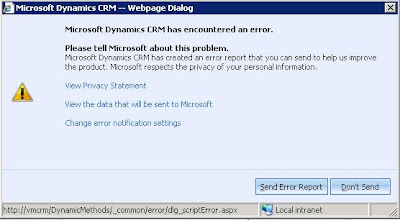
While working on a server recently I noticed that any time I closed an Account form I would get prompted to send error data back to Microsoft. I couldn't figure out what was causing the script error and the annoying window to pop up at first but I wanted to get rid of the pop up. The one that looks like this:


Most people just get fed up with seeing this and either constently click Send or Don't Send. Well, there's an easier way around this. The last hyperlink on the message says "Change error notification settings."


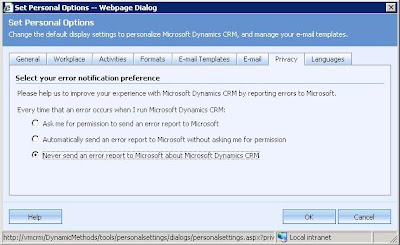
By clicking on this a new window will open up to your CRM Personal Options page and take you right to your Privacy tab.


And your options here are to either always be prompted (default), always send automatically, or to never send error messages. If you choose to either always send or never send you will not see the annoying script error pop up box again. You will be free to go about using CRM without being interrupted by these windows again.

Evidently my script errors were related to the Presence Control. There is a Microsoft KB article on how to turn off the Presence Controls throughout the system, click here (you will need a PartnerSource log in to view the KB article) to see how to turn it off.

Happy script error window free CRM using!

David Fronk
Dynamic Methods Inc.


Auditing Report Execution using the ReportServer Database

We welcome our guest blogger David Jennaway who is the technical director at Excitation and a CRM MVP.

Reporting Services is usually considered at most as just the engine for executing and rendering reports. However, it also has its own SQL database that contains information that can be useful. In this article I’ll look at how you can use information derived from the ExecutionLog and Catalog tables to find information about who ran which report, and how long it took.

Accessing data in the ReportServer database

The recommended approach for querying the execution log is to periodically extract the data from the ReportServer database into a separate, denormalised database, then query this database. This approach is described in the SQL Server Books Online here (http://msdn.microsoft.com/en-us/library/ms155836(SQL.90).aspx ), and there are associated samples which include an SSIS package to perform the extract, and some sample reports on the extracted data (http://msdn.microsoft.com/en-us/library/ms161561(SQL.90).aspx ).

There are several advantages to this approach:

  • The denormalisation process in the SSIS package parses the parameters used in the report execution, which will be useful for us later
  • Using a separate database allows you to have more control over any additional SQL objects you create. As I’ll discuss later, it is useful to create a SQL function to get the friendly name of the report in CRM 4.0
  • Using a separate database allows you more flexibility when managing the SQL security. By default most users will not have the rights to query the ReportServer database directly
  • If the ReportServer and CRM database(s) are on a separate server, you can place the denormalised database on the same SQL Server as the CRM database(s). This will simplify the process of getting the report name from the CRM database

However, it is also possible to query the ReportServer database directly. This will give you data that is always up to date, but you will have to ensure users have sufficient permission on the tables, and you will have to parse the report parameters yourself.

The rest of this article is based on the denormalised database created from the SQL Server Samples.

Database Structure

The scripts described above create several tables; those that are relevant to this article are:

  • Reports. This contains a record for each report in Reporting Services
  • Users. An entry for each user on Reporting Services
  • ExecutionLogs. This table has the core data we’re using here. It has a record for each execution of a report, including statistics on the time taken, and the parameters used
  • ExecutionParameters. One record for each parameter used for each report execution

The following query illustrates a simple SQL query on these tables:

select r.Name as ReportName, u.UserName
, l.TimeStart, l.TimeDataRetrieval + l.TImeProcessing + l.TimeRendering as TotalTime

from executionlogs l
join reports r on l.reportkey = r.reportkey
join users u on l.userkey = u.userkey

This produces output like the following:

ReportName

UserName

TimeStart

TotalTime

My Report

MyDomain\My User

2008-10-06 12:51:22.123

1023

{7121cc90-d2c0-dc11-8308-0003ff562152}

NT AUTHORITY\NETWORK SERVICE

2008-10-06 12:51:51.817

551

...


The first record is from a separate report on a database that has nothing to do with Dynamics CRM, while the second record is from executing the Activity report on a Dynamics CRM 4.0 Server, in a deployment where the Dynamics CRM Data Connector for Reporting Services has been installed.

From this you can probably see that, while the above query gives immediately helpful information when running non-CRM reports, it is not so useful for the CRM report. There are 2 things we have to do; get the actual user name or the user running the report, and get a usable report name.

Getting the UserName from the ExecutionParameters

The UserName information from the above query would normally identify the user that ran the report. However, if you use the Dynamics CRM Data Connector for Reporting Services, then this field will not give you this information.

However, it is possible to get the user information from the parameters passed to the report. Dynamics CRM passes several pieces of information to a report in the form of parameters, and the CRM_FullName parameter holds the name of the user executing the report.

So, we can change the above query to the following:

select r.Name as ReportName
, (select p.Value from executionparameters p where ExecutionLogID = l.ExecutionLogID and Name = 'CRM_FullName') as UserName
, l.TimeStart, l.TimeDataRetrieval + l.TImeProcessing + l.TimeRendering as TotalTime
from executionlogs l
join reports r on l.reportkey = r.reportkey

This now gives us:

ReportName

UserName

TimeStart

TotalTime

{7121cc90-d2c0-dc11-8308-0003ff562152}

CRM Admin

2008-10-06 12:51:51.817

551

...


Rather than using a join to get the ExecutionParameter, I used a subquery. This is mostly a matter of preference, but it makes it easier to include several parameter values on the select list.

Getting the Report Name from the MSCRM Database

Now we need the report name. If we were using CRM 3.0, this would show us the name of the report as we see it in the Dynamics CRM user interface, but things work differently in CRM 4.0. In CRM 4.0, the reports are created with a Guid for a name, and the usable name is stored in the organisation’s MSCRM database.

To get the report name in our query we will need data from another database. This can be done in a join, but I prefer to use a SQL function to do the work:

create function fExcitationGetReportName(@RSName nvarchar(425))
returns nvarchar(425)
as
begin
declare @ret nvarchar(425)
select @ret = r.name from AdventureWorksCycle_MSCRM..FilteredReport r
where @RSName = '{' + cast(r.reportid as nvarchar(100)) + '}'
return @ret
end

To avoid supportability concerns, I create this function in my RSExecutionLog database, and include the specific organisation database name in the function definition. You’ll need to replace AdventureWorksCycle_MSCRM with your CRM database name. If you have multiple organisations you could either create a function per organisation, or pass the organisation name as a parameter into the function, and use dynamically generated SQL.

Another point to make about the function is that we need to cast the reportid in CRM from a Guid to a string, and add the curly braces to match the name that is stored in Reporting Services

Once we’ve create the function, we can use it as follows:

select dbo.fExcitationGetReportName(r.Name) as ReportName
, (select p.Value from executionparameters p where ExecutionLogID = l.ExecutionLogID and Name = 'CRM_FullName') as UserName
, l.TimeStart, l.TimeDataRetrieval + l.TImeProcessing + l.TimeRendering as TotalTime
from executionlogs l
join reports r on l.reportkey = r.reportkey

Which gives the output we want:

ReportName

UserName

TimeStart

TotalTime

Activities

CRM Admin

2008-10-06 12:51:51.817

551

...


Further Thoughts

So far I’ve concentrated on the SQL aspects of getting the data you want from the underlying tables. Once you have this, you can present this information in your own reports. The samples that create the RSExecutionLog database include some sample reports that you can use, and the SQL within these reports can be easily modified using the techniques described above to get the report and user names.

I don’t have the space in this article to go into detail about extra things you can do with the data from ReportServer, but here are some additional ideas which may make it into a subsequent article:

  • Some other ExecutionParameters may be useful. CRM_FilterText gives a text representation of the pre-filter used on a report
  • If you have multiple CRM organisations, I find the easiest way to identify the organisation is to use the first part of the Path column in the Reports table. This gives the database name, which is derived from the organisation’s unique name

Links

Report Execution Log at SQL Books Online - http://msdn.microsoft.com/en-us/library/ms159110(SQL.90).aspx

Code used in this article, and sample reports on the MSDN Code Gallery - http://code.msdn.microsoft.com/RSExecutionLogCRM40.

Cheers,

David Jennaway